
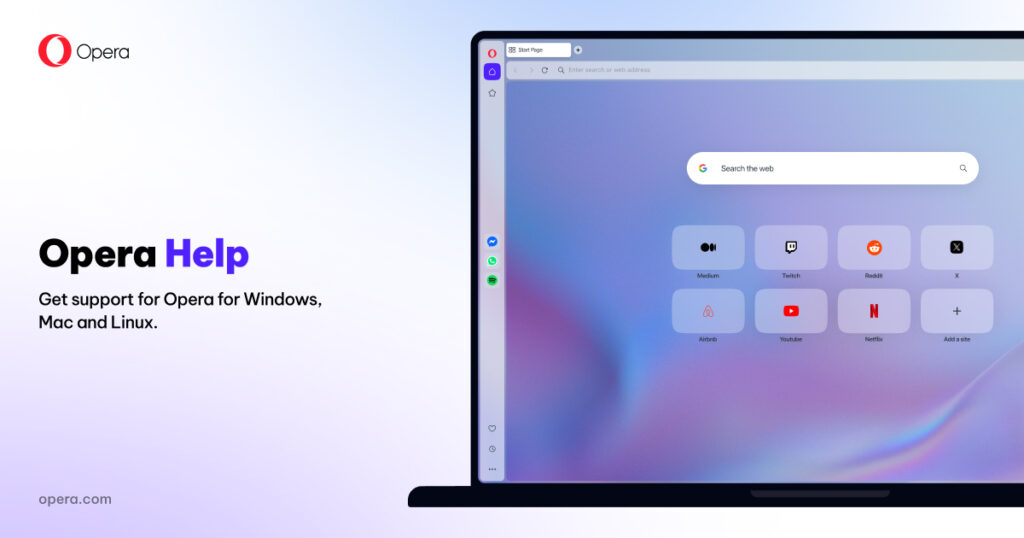
Explore the categories to the left
Browse through the categorized sections on the left to learn more about Opera browsers. If you have a specific question, we recommend you search in the FAQ section. For the latest news and updates, check out Opera’s Blog.
Popular topics

Update your browser
Your Opera browser will automatically update when a new version is available. You can check its status in Update & Recovery.

Get started
New to Opera? Visit this page to get a sweeping overview of what’s available in our browser.

Security and Privacy
Opera’s built-in ad blocker, VPN, and other features make it one of the most secure browsers available. Learn about how you are protected with Opera.
Get help from the Opera Community
Check Opera’s forums to learn from experienced Opera contributors and users, ask questions, or share your own tips with others.
Report issues and crashes
If you encounter any problems or crashes, you can report them by using the Opera bug report wizard.