
Opera can save your mobile data by compressing images and text on the pages you visit. Data is compressed on Opera’s servers before it reaches your device, helping you make the most of your data plan and browse faster on slow or unreliable networks.
Simply put, Data Saver helps you use less mobile data. Pages can also load faster on slow connections because it uses less data.
Turn Data Saver on or off
Data Saver is off by default. TData Saver is off by default. You can turn it on or off in either of these ways:
- Tap the three-dot icon to open the main menu, then tap the Data Saver button (leaf icon) in the top row. The button is highlighted when Data Saver is on.
- Go to the three-dot icon → Settings → Data Saver and use the Data Saver switch.
Shortcut: To open Data Saver settings directly, long-press the Data Saver button in the main menu.
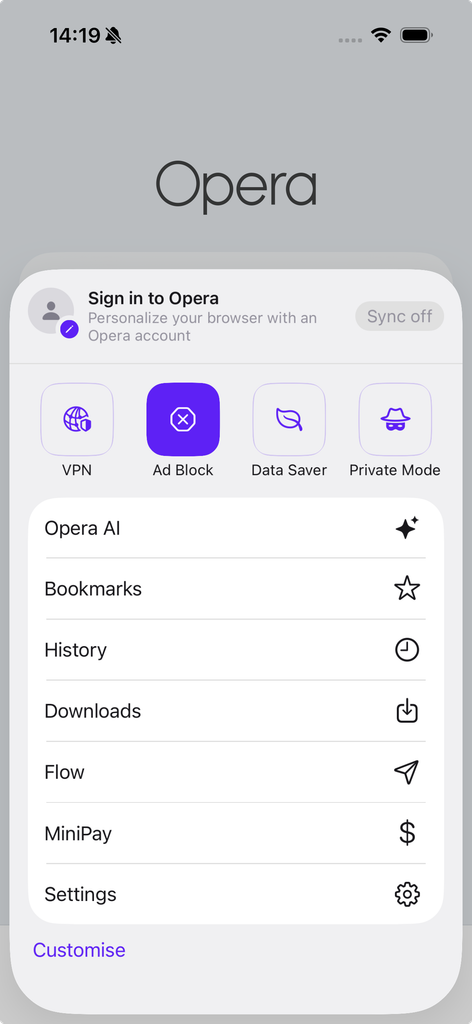
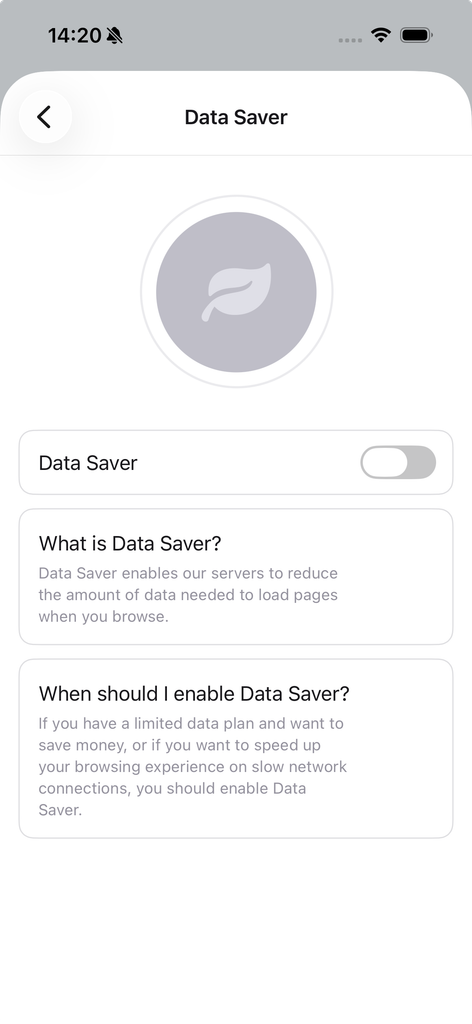
Data Saver now replaces Share in the top row of the main menu. You can still access Share from the options list below the top-row icons when a webpage is open.
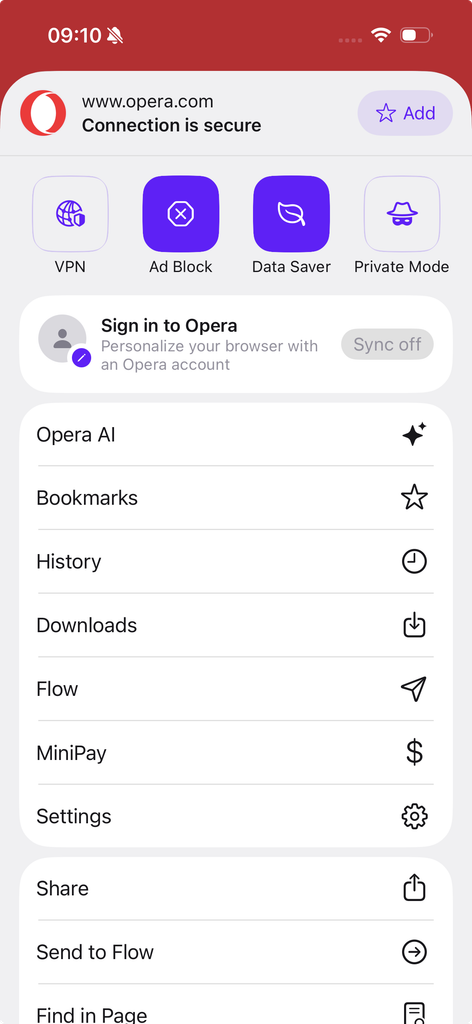
If you don’t see Data Saver in the main menu or in Settings, it isn’t available to you yet.
What changes when Data Saver is on
- Images load in lower quality to save data. You can’t change the image quality. To see images in full quality, turn Data Saver off.
- Video and audio are not affected.
- Downloads are not affected.
- Private tabs also use Data Saver.
- Pages reload when you turn Data Saver on or off. The page you’re viewing reloads right away, and other open tabs reload the next time you open them. Any video or audio that is playing stops.
Data saved
Go to the three-dot icon → Settings → Data Saver to see how much data you have saved. The Data saved amount appears only while Data Saver is on.
Shortcut: To go straight to the Data Saver settings, long-tap the Data Saver button in the main menu.
- The amount includes savings across all networks, including Wi-Fi.
- If you turn Data Saver off, your saved amount is kept. It continues to accumulate when you turn Data Saver back on.
- The amount is stored only on your device. It doesn’t sync across devices, and Clear Browser Data doesn’t reset it.
To reset the amount, turn Data Saver on, go to three-dot icon → Settings → Data Saver, tap Clear at the bottom of the screen, then tap Clear again to confirm. You can’t undo this action.
Free Data
With some mobile operators, Data Saver includes Free Data, a daily allowance of mobile data that your operator doesn’t charge you for. The dialog shows how much Free Data you receive each day.
If your operator supports Free Data, Opera asks: Would you like to enable Free Data using your mobile service? when you turn on Data Saver. Tap Enable to use Free Data or No thanks to skip it. To hide this question for one week, select Don’t ask again for 7 days.
Free Data works only when Data Saver is ON. To stop using Free Data, turn Data Saver off. Then you’ll be asked to confirm. Tap Turn data savings OFF to return to your standard data plan, or keep data savings on to continue using Free Data. If you turn Data Saver on again, Free Data also turns on automatically.
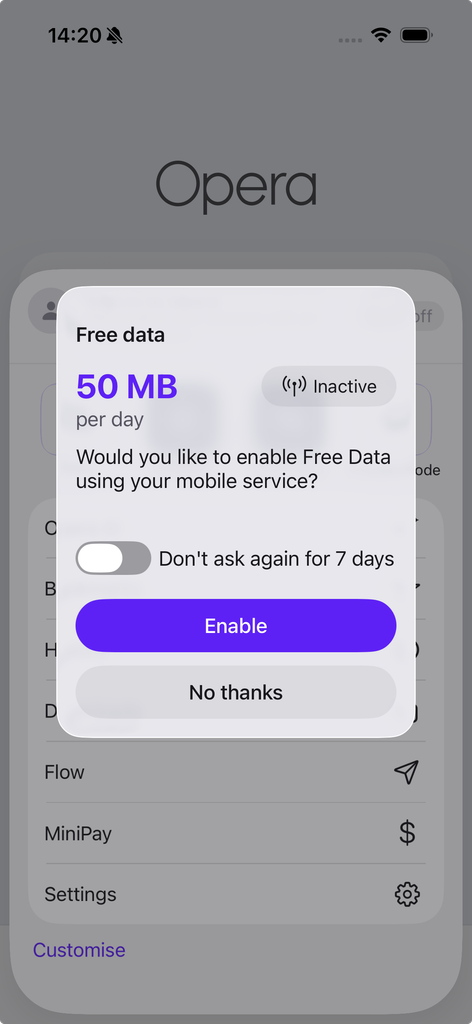
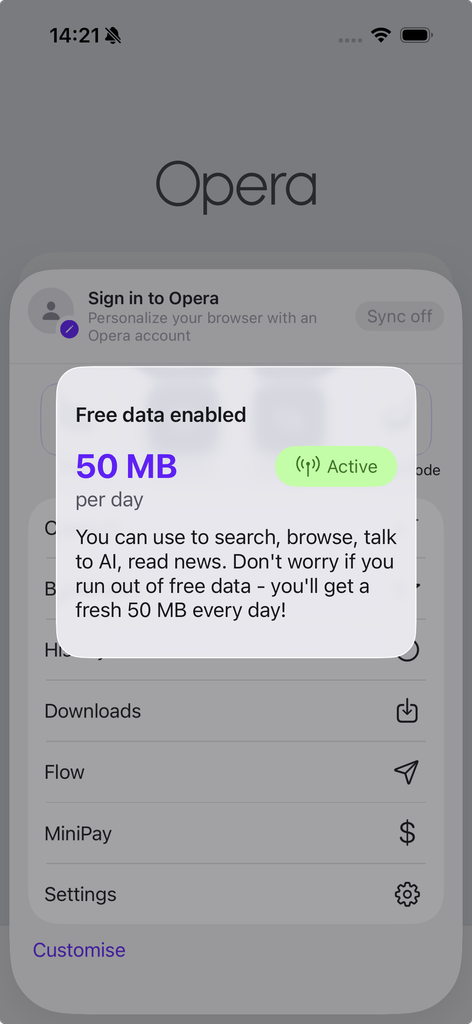
The amounts shown are illustrative and don’t represent actual offers.
Troubleshooting
My data counter isn’t increasing.
Data Saver doesn’t count savings from downloads or audio and video content. Downloading files, listening to music, or watching videos won’t increase your saved amount. Additionally, pages you’ve visited before may load from the browser cache to speed up loading. These pages don’t contribute to the data savings total.
I have data but the page won’t load or doesn’t work correctly.
Turn Data Saver off and reload the page. If the page works without Data Saver, please report the problem and include the page address.